
How to Stop Facebook Notifications on iPhone, Android, and Desktop
Facebook notifications can help you keep track of messages, comments, and friend requests. However, too many alerts can become a distraction.
You might receive updates about groups you rarely visit, posts you don’t follow, or birthdays you don’t need to remember. In some cases, notifications may continue even after you change your Facebook settings.
If you’re wondering how to stop Facebook notifications, you have several options. You can turn off all app alerts, mute certain activities, or change how Facebook contacts you.
This guide explains how to manage Facebook notifications on iPhone, Android, and desktop.
How to Stop Facebook Notifications: Quick Answer
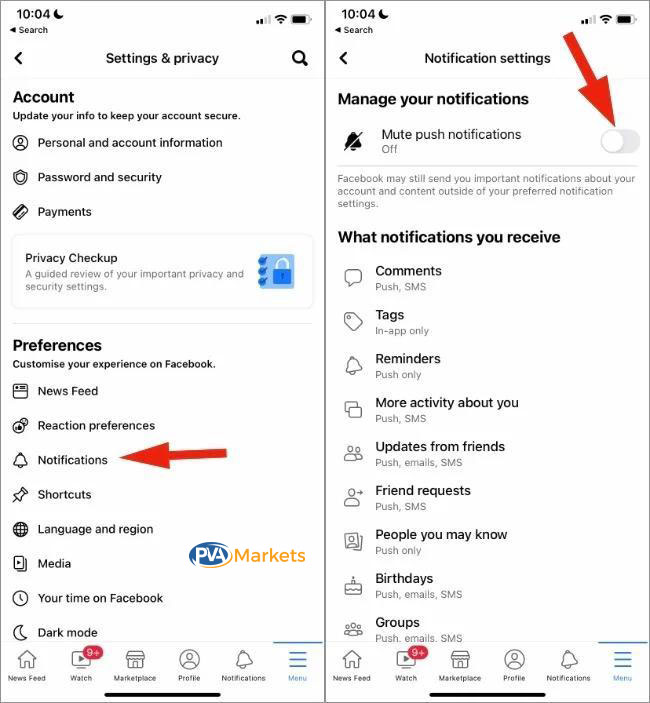
To stop unwanted notifications without turning off every alert, follow these steps:
- Open Facebook and sign in to your account.
- Tap or click Menu.
- Go to Settings & privacy, then select Settings.
- Find Notifications under Preferences.
- Choose the activity you want to manage, such as Groups, Birthdays, or Comments.
- Turn off the available alerts or change how Facebook sends them.
Facebook lets you manage both the types of notifications you receive and how you receive them.
For a complete stop, you can also block Facebook notifications through your phone or browser settings.
How to Stop Facebook Notifications on iPhone
An iPhone gives you two ways to control Facebook alerts. You can change notification preferences inside Facebook or block alerts through iOS.
Method 1: Turn Off Facebook Notifications Through iPhone Settings
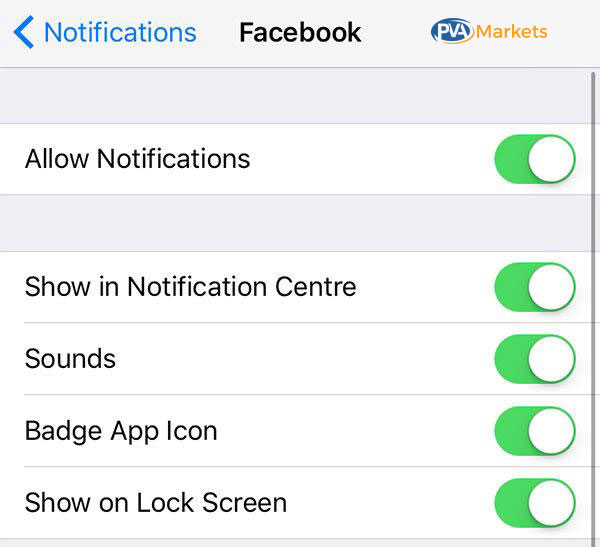
Use this method if you don’t want Facebook alerts to appear on your lock screen, banners, or notification center.
- Open the Settings app on your iPhone.
- Tap Notifications.
- Find and select Facebook in the app list.
- Turn off Allow Notifications.
Your iPhone will stop showing notification alerts from the Facebook app.
However, this change does not remove notifications from your Facebook account. You can still see updates when you open the app.
Method 2: Turn Off Specific Notifications in Facebook
You don’t have to disable everything to reduce unwanted alerts.
Open Facebook and follow these steps:
- Tap Menu.
- Select Settings & privacy.
- Open Settings.
- Tap Notifications.
- Choose a category, such as Groups or Birthdays.
- Adjust the available notification settings.
For example, you can stop birthday reminders while keeping comments and friend request alerts.
Which method should you use?
Go to iPhone Settings to block all Facebook app alerts. Use Facebook’s own settings when you only want to mute certain updates.
How to Turn Off Facebook Notifications on Android
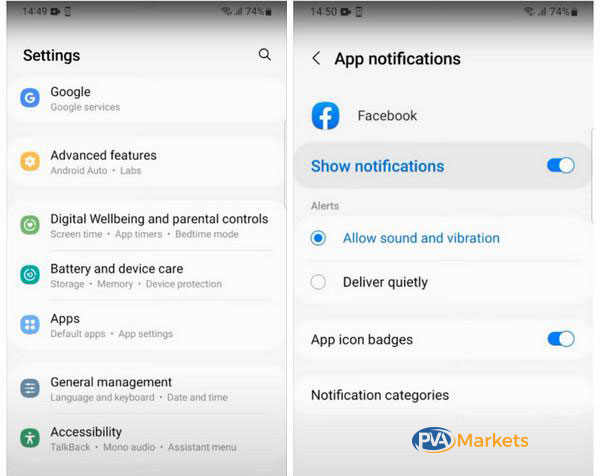
Android users can manage notifications through the Facebook app or their phone’s system settings.
The exact menu names may vary by phone brand and Android version.
Method 1: Disable Facebook Notifications on Android
- Open your phone’s Settings.
- Tap Apps.
- Find Facebook in the app list.
- Select Notifications.
- Turn off all Facebook notifications or Allow notifications, depending on your device.
Once you disable this setting, Android will stop displaying Facebook app notifications.
You can still receive other types of Facebook messages, such as email alerts, if those options remain active.
Method 2: Manage Facebook Alerts Without Blocking Everything
If you need some alerts, change your preferences inside Facebook instead.
- Open the Facebook app.
- Tap Menu.
- Go to Settings & privacy, then Settings.
- Scroll to Notifications.
- Select the category you want to change.
- Turn off unwanted notification options.
For instance, you might keep account-related updates while reducing alerts about group activity.
Some Android phones also let you control notification categories from the device settings. If your phone offers this feature, review the available options before blocking all alerts.
How to Stop Facebook Notifications on Desktop
Facebook notifications can appear while you’re using the website. Your browser may also show alerts when Facebook isn’t the active tab.
These are different types of notifications. Therefore, you may need to adjust more than one setting.
Method 1: Change Notifications on Facebook.com
- Open Facebook.com.
- Click your profile picture in the top-right corner.
- Select Settings & privacy.
- Click Settings.
- Find Notifications under Preferences.
- Choose a notification category.
- Change the available settings.
This method helps you reduce the number of updates about events, groups, birthdays, and other Facebook activities.
Keep in mind that certain account or security alerts may still appear.
Method 2: Block Facebook Browser Notifications
If Facebook alerts appear on your desktop when the website isn’t open, review your browser’s notification permissions.
Google Chrome
- Open Chrome.
- Click the three-dot menu and select Settings.
- Go to Privacy and security.
- Select Site settings.
- Open Notifications.
- Find Facebook in the sites allowed to send notifications.
- Block or remove its notification permission.
If you remove the permission, Chrome may ask you again in the future. Blocking the site prevents that permission from allowing notifications.
Microsoft Edge
- Open Edge Settings.
- Select Cookies and site permissions or Site permissions, depending on your version.
- Open Notifications.
- Find Facebook in the allowed sites.
- Change its permission to Block.
Afterward, your browser should stop showing Facebook website notifications.
These browser changes won’t stop alerts from the Facebook mobile app.
How to Turn Off Facebook Group Notifications
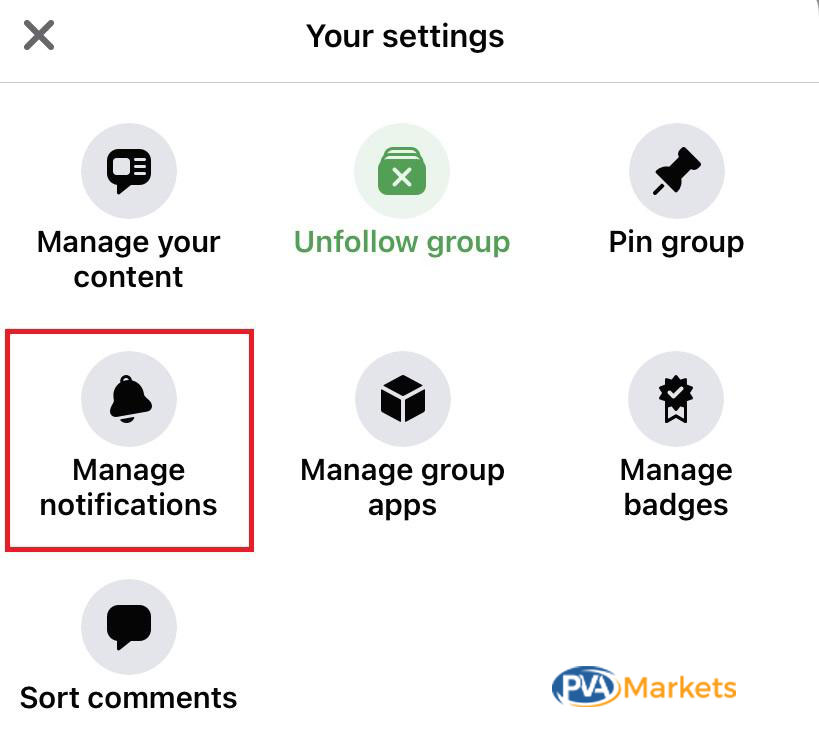
Facebook Groups can generate many notifications, especially when members publish posts throughout the day.
Fortunately, you can mute one group without leaving it.
Follow these steps:
- Open Facebook and go to Groups.
- Select the group you want to mute.
- Open the group menu or tap the group name.
- Choose Manage notifications.
- Select Off to stop group post notifications.
Facebook provides group-specific notification controls, including an Off option.
You can also choose a less frequent setting if you still want some updates.
Will Turning Off Group Notifications Remove You From the Group?
No. Changing a group’s notification settings does not remove your membership.
You can still visit the group, read posts, and take part in discussions.
However, group alerts are not the same as every notification related to the group. For example, a direct mention may fall under another notification category.
If alerts continue, check your general Facebook notification settings as well.
How to Stop Facebook Birthday Notifications
Birthday reminders can become repetitive when you have a large friends list.
To turn them off:
- Open Facebook.
- Go to Settings & privacy, then Settings.
- Select Notifications.
- Find Birthdays.
- Turn off “Allow notifications” on Facebook if that option appears.
If Facebook provides separate push, email, or SMS controls, adjust those as needed.
After making the change, you should receive fewer birthday reminders. This setting does not delete birthdays from your friends’ profiles.
Also, turning off birthday notifications is different from hiding your own birthday.
How to Stop Facebook Email Notifications
Facebook may send emails about account activity, updates, and other events.
If these emails fill your inbox, you can change your email notification preferences.
- Open Facebook Settings.
- Go to Notifications.
- Find the Email notification settings.
- Review the available email options.
- Reduce or turn off the types of emails you no longer want.
Some account, privacy, and security messages may continue because they serve a different purpose.
Avoid marking every Facebook email as spam. You could miss an important login warning or account recovery message.
Instead, review your Facebook email preferences first.
How to Stop Facebook Notifications From a Specific Person
You may receive alerts when someone posts, shares a video, or updates their profile.
If you no longer want those updates, check whether you’ve enabled notifications for that person’s activity.
- Open the person’s Facebook profile.
- Look for the notification or the following controls.
- Review any available post, story, or video notification settings.
- Turn off the alerts you no longer want.
The options may vary between personal profiles, creators, and Facebook Pages.
You can also unfollow someone if you want to see fewer of their posts in your feed.
However, unfollowing a person and turning off notifications are not the same action.
Unfollowing mainly changes what appears in your feed. Notification controls determine which updates trigger alerts.
How to Stop Facebook Notifications From Appearing on Your Lock Screen
You can hide Facebook alerts from your lock screen without turning off all notifications.
This option may suit you if you want to keep notifications but protect your privacy.
On iPhone
- Open Settings.
- Select Notifications.
- Tap Facebook.
- Under Alerts, turn off Lock Screen.
You can leave other alert options active if you still want notifications elsewhere.
On Android
- Open Settings.
- Go to Apps and select Facebook.
- Open Notifications.
- Find the lock screen notification settings, if available.
- Choose to hide alerts or prevent them from appearing on the lock screen.
Some Android devices place these controls under the phone’s main notification settings instead.
If you can’t find them inside Facebook’s app settings, search your phone Settings for “lock screen notifications.”
Why Do I Still Get Facebook Notifications After Turning Them Off?
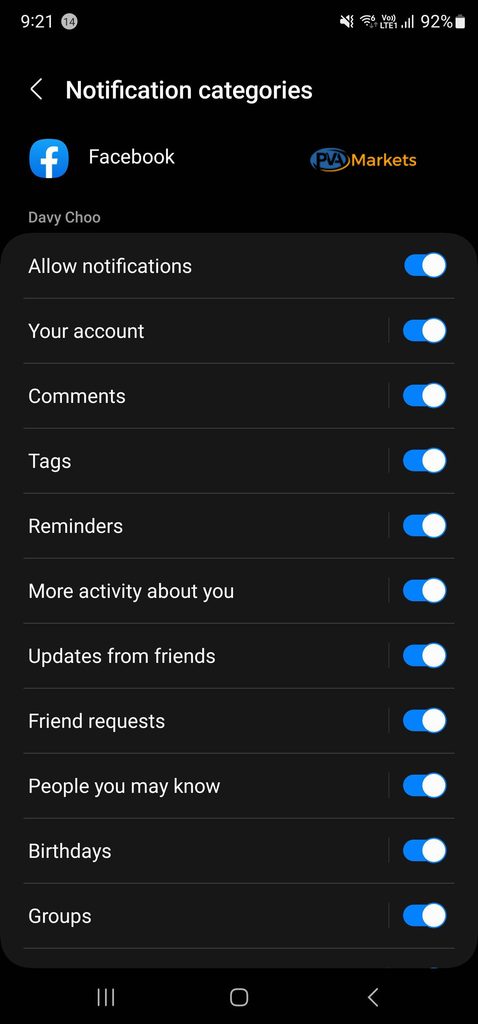
Changing notification preferences doesn’t always stop every type of alert.
The reason often depends on which settings you changed.
1. You Disabled Only One Notification Type
Facebook offers different notification categories and delivery methods.
For example, turning off group notifications won’t stop friend request alerts.
Solution: Review other active categories in Facebook’s notification settings.
2. Your Browser Still Allows Facebook Notifications
Your phone and browser use separate notification permissions.
As a result, disabling mobile alerts won’t prevent Chrome or Edge from showing Facebook website notifications.
Solution: Open your browser’s site notification settings and block Facebook.
3. You Have More Than One Facebook Account or App
You may have another Facebook account signed in on a different device or browser.
Likewise, Facebook and Messenger use separate apps.
Solution: Check which app or account sends the notification before changing more settings.
4. Messenger Notifications Are Still Active
Facebook and Messenger have separate notification controls.
If your phone displays a Messenger alert, turning off notifications for the Facebook app won’t necessarily stop it.
Solution: Open Messenger’s notification settings or disable Messenger alerts through your phone settings.
5. Facebook Has Not Applied the Change as Expected
An outdated app, a temporary issue, or a missed setting can make troubleshooting harder.
Try these checks:
- Close and reopen Facebook.
- Confirm that your notification changes remain saved.
- Update Facebook through your device’s app store.
- Restart your device if notifications continue.
- Check the relevant app and browser permissions.
Avoid reinstalling the app as your first step. Most notification issues can be resolved in settings.
Facebook Notification Settings: Which Option Should You Choose?
Different settings solve different problems.
| Your goal | Best setting to change |
| Stop all iPhone Facebook alerts | iOS notification settings |
| Stop all Android Facebook alerts | Android app notifications |
| Stop birthday reminders | Facebook Birthdays notifications |
| Stop group post alerts | Group notification settings |
| Stop Facebook emails | Facebook Email notifications |
| Stop desktop pop-ups | Browser site permissions |
| Hide lock screen alerts | Phone lock screen notification settings |
| Stop Messenger alerts | Messenger notification settings |
Start with the setting that matches your problem. That way, you won’t lose alerts you still need.
If you use Facebook for business or social media management, keeping your account settings organized can help reduce unwanted alerts. Users who manage multiple profiles can also explore the available Facebook accounts on PVAMarkets.
Frequently Asked Questions
Can I turn off all Facebook notifications at once?
You can block all notifications from the Facebook mobile app through your phone settings. However, Facebook email alerts, browser notifications, and Messenger may require separate changes.
How do I stop Facebook notifications without deactivating my account?
Open Facebook Settings, select Notifications, and mute the categories you want. You can also disable app notifications through your device settings. Neither method requires account deactivation.
Why am I getting Facebook notifications from people I don’t know?
Facebook may notify you about suggested content, groups, Pages, or other activity. Check the notification category and related settings before blocking all alerts.
Can I stop Facebook notifications for just one group?
Yes. Open the group, select Manage notifications, and choose Off. You can keep notifications active for your other groups.
Does turning off Facebook notifications stop messages from coming through?
No. Your messages can still arrive. Turning off notifications mainly changes how your device alerts you. If you want to stop Messenger notifications, change its settings separately.
Will I lose notifications if I turn them off?
Disabling push notifications stops your device from showing those alerts. It does not delete your Facebook account activity. However, you may no longer receive every update as a phone alert.
How do I stop Facebook notifications at night?
Use your phone’s Do Not Disturb or Focus mode to silence alerts during selected hours. You can also review Facebook’s available notification controls. Phone-level scheduling is useful when you want alerts during the day but not at night.
Final Thoughts
You don’t need to delete Facebook or deactivate your account to stop unwanted notifications.
For the simplest fix, use your phone settings to block Facebook alerts. If you still need some updates, change individual notification categories inside Facebook.
Desktop users should also check their browser permissions. Meanwhile, anyone who uses Messenger may need to adjust those alerts separately.
The best approach is to keep the notifications you need and turn off the rest.
For additional account settings and troubleshooting information, visit the Facebook Help Center.